

Instagram is a thriving network with over 2.35 billion monthly active Instagram users tapping away on their screens worldwide. And the fact Meta is introducing more and more handy features such as broadcast channels and AI features, we're confident that your and your client's business can grow together with this platform.
That is, if you've covered the basics and are continuously using a strategic approach to implementing new features.
In this article, we won't discuss AI stickers and how to use Collaborative posts to grow your following, but we will remind you of just how important it is to set up an Instagram business profile the right way and optimise it for search in order to stand out amongst over 200 million business Instagram accounts.
So, without further ado, let's dive into:
- What to do before creating an Instagram business account
- How to create a new Instagram business profile
- How to optimise your business account for search
What to do before creating an Instagram business account
Creating a business Instagram account is a pivotal step towards expanding your brand's online presence and engaging with your target audience effectively.
However, before diving into the world of Instagram marketing, there are several critical preparations you should undertake to ensure your account starts off on the right foot. Here's a concise guide on what you need to do before creating a business Instagram account:
1. Define your goals and KPIs (Key Performance Indicators)
- Clearly outline your objectives for being on Instagram. Are you looking to increase brand awareness, drive website traffic, generate leads, or boost sales?
- Identify specific KPIs that align with your measurable goals, such as the number of followers, engagement rate, click-through rates (CTR), or conversion rates.
- Ensure that the KPIs you chose truly add to the business's overall objectives.
2. Understand your target audience
- Conduct thorough audience research to determine who your ideal followers and customers are.
- Create detailed buyer personas to understand their demographics, interests, pain points, and behaviours.
- Knowing your audience is crucial for crafting content that resonates with them.
3. Develop a content strategy
- Plan the type of content you will post, including images, videos, stories, and captions.
- Ensure your content pillars align with your brand's identity and speak to the interests and needs of your target audience.
- Consider the frequency of posting and find a solution to maintain a consistent schedule. Take into account if this is a one-man job or if it includes a team.

How to Create a Social Media Content Calendar for Your Agency Clients
4. Secure the brand's Instagram handle
- Ensure the Instagram username (handle) is consistent with brand's name and easy to remember.
- Verify that it's available and secure it promptly.
5. Familiarise yourself with Instagram's Policies
- Review Instagram's terms of service and community guidelines to avoid any violations.
- Choose a trusted source to stay informed about platform updates and changes.
By thoroughly addressing these key preparations before creating your Instagram business account, you'll be well-equipped to establish a strong and effective presence on the platform from day one. Remember that a well-thought-out strategy and a deep understanding of your audience are the foundations of successful Instagram marketing.
How to create a new Instagram business profile
Before starting to explore all the possibilities that a business account presents you with, you need to create a personal account. Don't worry too much about adding all the information now, as you'll update it once you switch to a business profile.
Here's how the entire process from creating a personal account to launching an Instagram business profile should look like:
- Step 1: Download and launch the app (the Instagram app is available on iOS , Android, and Windows). Open it once it has been downloaded.
- Step 2: Tap “Sign up” and enter your email address or phone number to register. Alternatively, tap “Sign in” with Facebook. Choose your predefined username and complete the registration. Then, sign into the Instagram app on your mobile device.
- Step 3: Visit your profile (main page) and tap the hamburger menu (three lines) in the upper right corner, then navigate to Settings and Privacy, then Account type and tools, and Switch to a professional account.
- Step 4: Pick a category that best describes your business, then select Business.
And that's it! You, or your agency's client, are now the proud owner of an Instagram business profile, and you can start marketing your business on this magnificent social media platform.
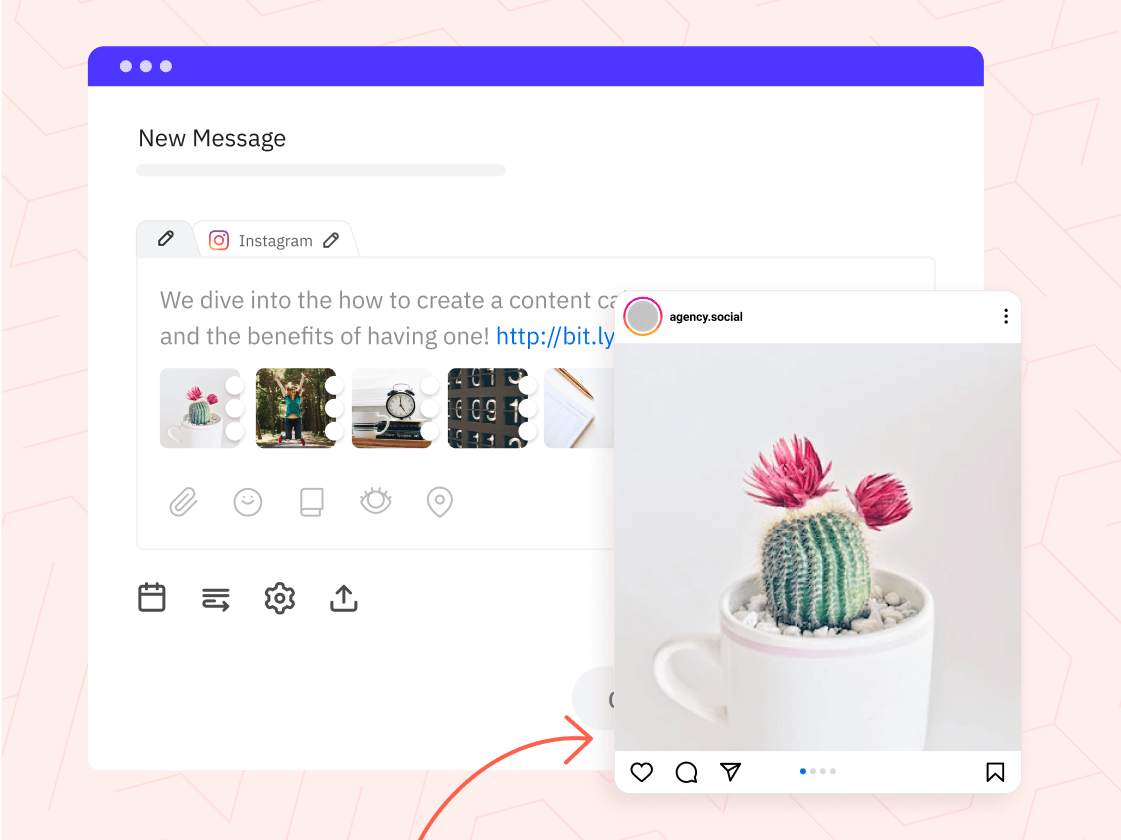
Elevate Your Instagram Strategy with Sendible.
Seamlessly publish content, schedule Instagram posts, monitor comments, and retrieve insightful analytics. Tap into the realm of enhanced content creation with our built-in image editor and Canva integration.

But how do you actually get started with reaching all those pre-set goals and KPIs?
Don't worry, we won't leave you alone to figure out how to close this massive gap. So let's dive right into the next chapter.
How to optimise your Instagram business account for search
Creating Instagram content is incredibly fun - especially when you start getting all that engagement.
But how do you get from 0 likes to proudly presenting a monthly report that testifies to your social media management skills in growing Instagram followers, cultivating relationships with prospects, and skyrocketing engagement?
Well, the answer is social SEO.
I know it might sound intimidating, but trust me when I tell you that's the “secret” ingredient that will separate you from the competition.
Instagram algorithm changes constantly, and just when you think you've mastered the Instagram strategy, Meta introduces a new feature and changes the rules of engagement. But there is one thing that will always beat everything, and that's making sure that the business account you've created is searchable and user-friendly.
So, without further ado, let's go through a step-by-step process of optimising your Instagram business profile.
1. Choose a recognisable profile picture
- Use your business's logo or a clear, professional image as your profile picture.
- Ensure the image is easily recognisable, even in a small thumbnail.
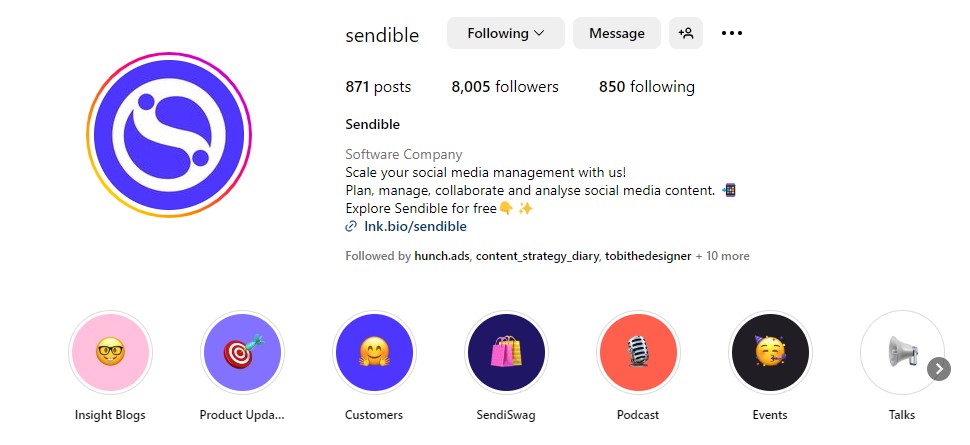 Source: @sendible
2. Craft a keyword-rich username
- Your Instagram username (handle) should ideally include your brand's name or a variation of it if it's not available.
- Avoid using special characters or unrelated words that may confuse users.
3. Optimise your business profile name
- The profile name field is searchable, so include your brand name and relevant keywords.
- Use a vertical bar (|) or other symbols to separate your brand name from keywords.
4. Write a compelling, SEO-optimised Bio
- Craft a concise and engaging bio that tells visitors what your business is about.
- Include relevant keywords that describe your niche, products, or services.
- Add a call to action (CTA) or a branded hashtag, if applicable.
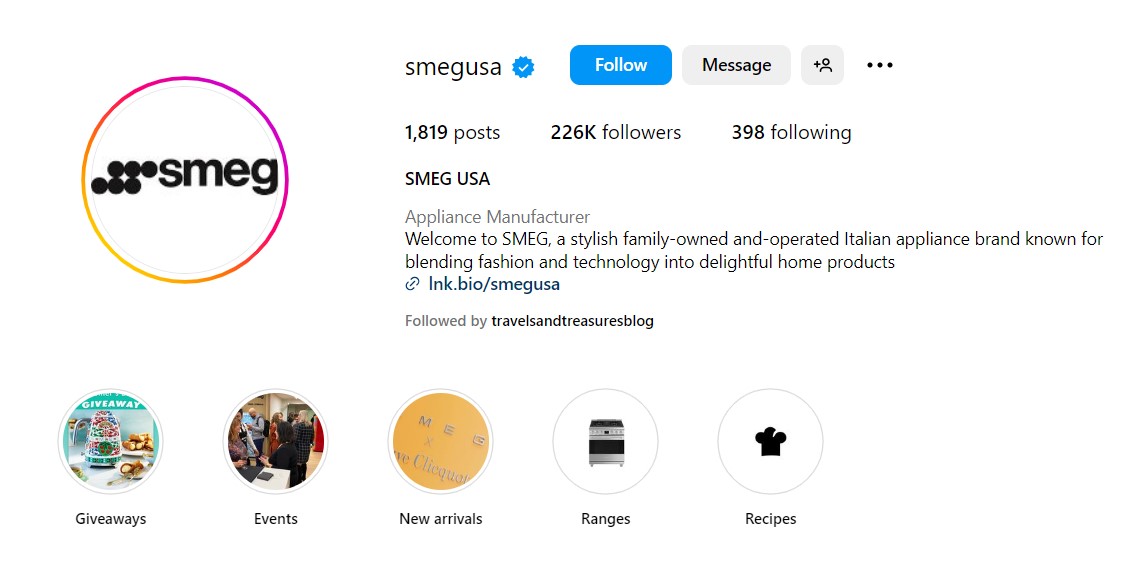 Source: @smegusa
5. Utilise the website link
- In the website field of your Instagram business profile, add a direct link to your website or a specific landing page.
- Update this link regularly to direct traffic to your latest promotions or content.
- Alternatively, you can add a custom link (e.g. by lnk.bio) that leads to a page with various categories.
6. Create an Instagram hashtag strategy
- These clickable keywords should be the pillar upon which you grow a professional account, so ensure you use relevant Instagram hashtags in your bio to increase discoverability.
- Include a mix of popular and niche-specific hashtags that align with the brand in every post.
- Come up with a unique hashtag to collect and curate user-generated content.
- Create an easy-to-type branded hashtag.
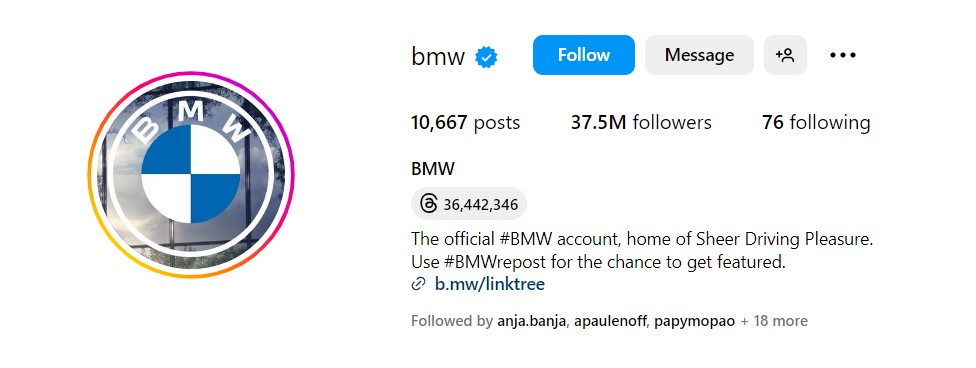 Source: @bmw
7. Opt for an Instagram business category
- If you haven't done it yet, select the most appropriate category for your business in the "Edit Profile" section.
- This helps Instagram users find businesses related to the brand's industry.
8. Complete contact information
- Ensure that contact details, such as email and phone number, are accurate and up-to-date.
- This information is vital for potential customers to get in touch.
9. Add an action button
- Action buttons can help you gain customers directly from your business profile. After you choose the call-to-action button, select an online service or add a lead form to gather contact info.
- There are currently three buttons available: Order food, Book Now, and Reserve.
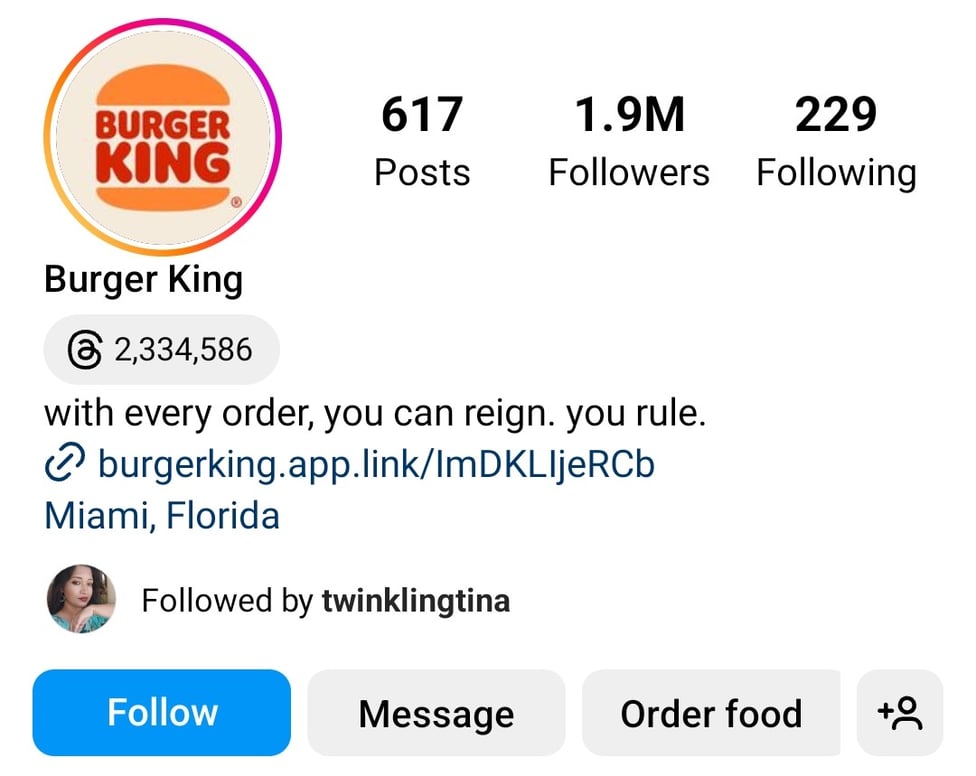 Source: @burgerking
10. Connect the business account to Facebook Page
- Linking the Instagram business account to a dedicated Facebook Page has many benefits, such as managing communication from one place and running ads.
- This also helps provide a smooth user experience for the followers and fans.
- Finally, having these two connected means you can speed up the scheduling process, either through the platform or through a social media management tool like Sendible.
11. Add a link to your Instagram Threads profile
- If you're on Instagram Threads ensure to add a shortcut to it to your Instagram bio.
- Simply tap on Edit profile and navigate to "Show Threads shortcut" to turn it on.
- It will take a few moments to show up.
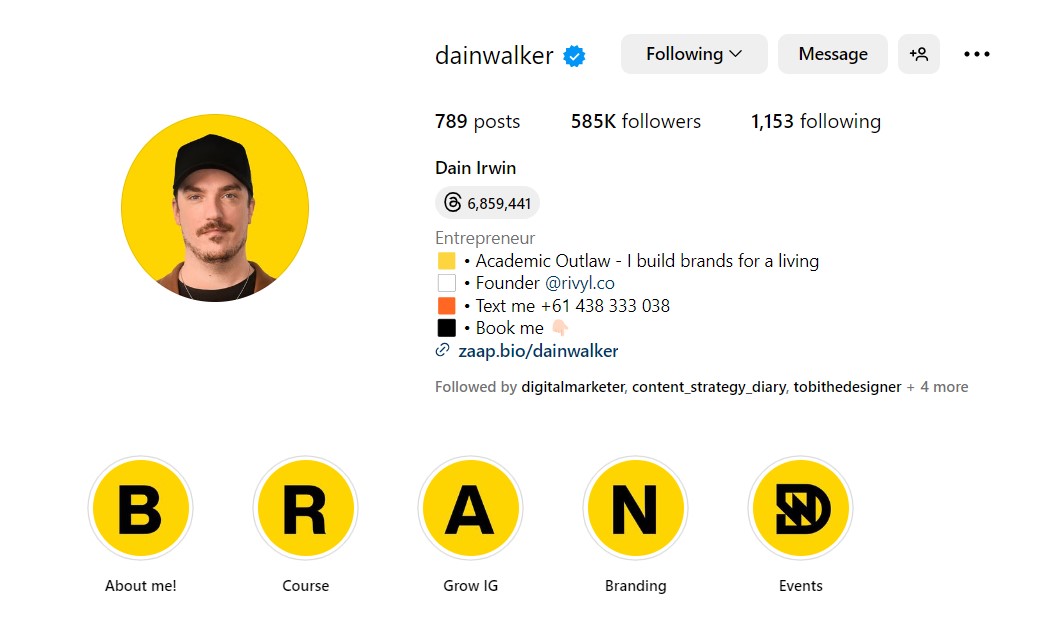 Source: @dainwalker
12. Leverage Instagram Story Highlights
- Create Instagram Story Highlights that showcase your products, services, or key features.
- Use descriptive titles and keywords under the highlights' cover images and descriptions.
13. Regularly post high-quality, relevant content
- Consistently share high-quality images, videos, and stories that align with your brand's identity and message.
- Include relevant keywords in your captions and hashtags.
- Don't forget to add alt-text where possible to improve accessibility.
- Add engaging captions and subtitles to your Instagram Reels and videos to improve searchability, accessibility, and reach.
14. Engage with your audience
- Interact with your followers by responding to comments and direct messages promptly.
- Engage with others in your niche by liking, commenting, and sharing content.
- Spark a conversation under the Instagram influencer's posts
- Utilise engaging Instagram Story features, such as Question, Poll, and Quiz.
15. Add your location
- Add a location tag to your Instagram Feed posts and Stories so that new users can easily find you.
- Include a location hashtag in your Caption or first comment.
16. Monitor Instagram Analytics
- Regularly check Instagram Insights to track the performance of your posts and profile.
- Use data to refine your content strategy and optimise your approach.
17. Collaborate and network
- Collaborate with influencers, partners, or other businesses in your industry to expand your reach through Instagram Collaborative Posts.
- Network with your target audience and engage in meaningful conversations.
By following these steps, you'll be well on your way to optimising your Instagram business profile for search and increasing your brand's visibility on the platform. Remember that consistency and relevance are key to long-term success on Instagram.
Wrapping up with Instagram 💜 Sendible
Sendible integrated Instagram into its social media management dashboard back in December 2012.
Since then, we've continuously innovated to bring you the best solution possible. Other than offering you the possibility to schedule Instagram Stories, Instagram Reels, choose the right hashtags, automatically post the first comment, and preview your Instagram Feed Grid, we made sure to create a solution that will save you hours of time while scheduling posts.
With Sendible, you can bulk import, approve, and schedule hundreds of posts that will leave you with enough time on your hands to grow your business.
The Sendible team is looking into implementing more exciting new features, but in the meantime, don't forget to subscribe to our exclusive monthly newsletter and/or grab our free resources.
We are here to support you and your social media growth!

Try Sendible free with 14-day free trial.
Leverage Sendible’s extensive integrations to create, schedule, publish, and engage with your posts seamlessly.

Text copied!